
Fast Checkout (Snel Bestellen)
Introduction
iDEAL becomes Wero
You’ll soon see a new logo: iDEAL | Wero.
iDEAL is evolving into "Wero", a new pan-European payment solution by the European Payments Initiative (EPI). The first step is the introduction of the mandatory iDEAL-Wero co-branding on all existing iDEAL checkout pages.
CM.com is handling all the technical updates required for iDEAL's transition to Wero, ensuring a seamless process for merchants. There will be no changes to the implementation of the current iDEAL payment method, so merchants can continue using it as usual without any disruptions.
To comply with the new guidelines, you have between January 29, 2026 and March 31, 2026 to complete the following:
Change the payment method name from iDEAL to iDEAL | Wero
Update the iDEAL logo to the iDEAL Wero co-branded logo. For instructions and the graphic files: https://ideal.nl/ideal-wero-branding
Fast Checkout also known as Snel Bestellen is an iDEAL 2.0 feature where a merchant (you) can request the Billing and Invoice Address data from a customer when they pay using iDEAL. This functionality allows for a faster (guest) checkout since the customer does not have to enter their details in your checkout. Instead an iDEAL Snel Bestellen button can be used as part of the guest checkout. Once a customer has paid using iDEAL Fast Checkout the requested information will become available in the iDEAL transaction response in the 'consumer' object.
To start using iDEAL Fast Checkout you'll need to add an additional object in the request body when creating an iDEAL transaction. This object is called checkout. The object contains the following fields:
  checkout: {
    shippingCost: 100,
    requestedDetails: {
      debtorContactDetails: {
        firstName: false,
        lastName: false,
        phoneNumber: false,
        email: false
      },
      shippingAddress: false,
      invoiceAddress: false
    }
  }
To request certain information you simply have to send in true for the value you'd like to receive. This will inform the consumer when they check out in the iDEAL process.
For fast checkout you must select at least 1 element to be requested from the consumer. For GDPR there are requirements to only request data that you actually need.
Guidelines
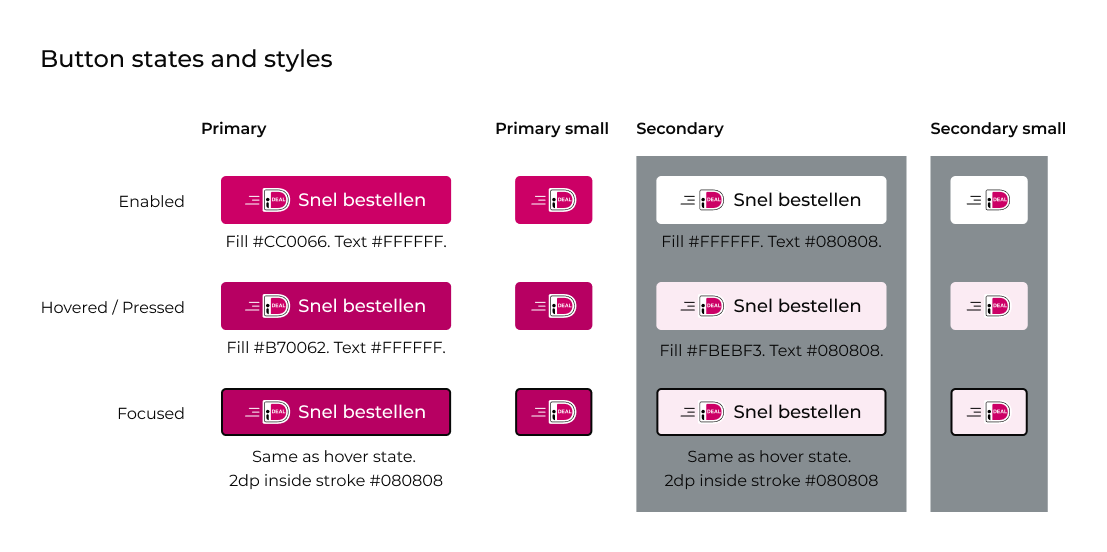
There are some guidelines when displaying Fast Checkout (a.k.a. Snel Bestellen) in your checkout. At the bottom of this page are 6 variations of the button available as SVGs.
- Label
Use “Snel bestellen” (default) or “Checkout”, matching your site/app language.
Format: Sentence case (e.g., "Snel bestellen").
Do not modify, shorten, translate, or fully capitalize the text. - Font
Montserrat (medium weight, 0% letter spacing).
Size = 0.65 × logo height (h), within 13pt (min) – 26pt (max).
Do not use other fonts, weights, or exceed size limits. - Logo
Use the official iDEAL Snel bestellen logo (min. 20dp height, never below 16dp).
Must always appear with the text label.
Do not modify colors, resize improperly, or use the logo alone. - Style
Available in magenta or white—ensure contrast with background.
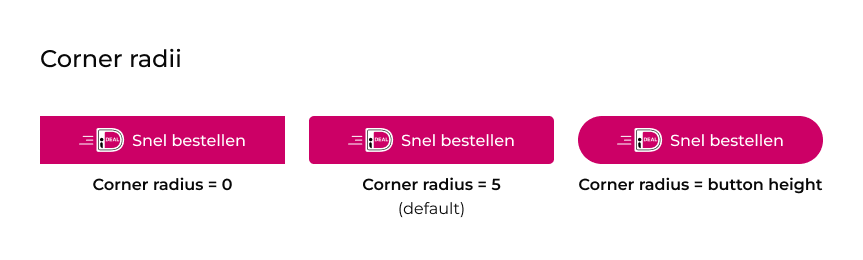
Default corner radius: 5, but can match other payment buttons.
Do not alter button styling. - Button States
Supports enabled, hover/pressed, and focused states.
The focus state can match your site/app’s design. - Sizing
Button must be equal to or larger than other payment buttons.
Resize proportionally per guidelines to maintain correct font and layout.
Do not make it smaller than the minimum required size. - Clear Space & Placement
Maintain at least 8px of spacing around the button.
Best practice: Display as the primary payment option.
Button Examples
Assets
You can use the following SVGs for the Fast Checkout (Snel Bestellen) button in your webshop.
Snel bestellen_focused_magenta_border:
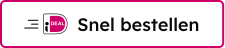
Snel bestellen_focused_no_border:
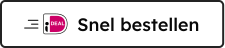
Snel bestellen_pressed_magenta_border:
Snel bestellen_pressed_no_border:
Snel bestellen_reg_magenta_border:
Snel bestellen_reg_no_border:
Updated 8 months ago